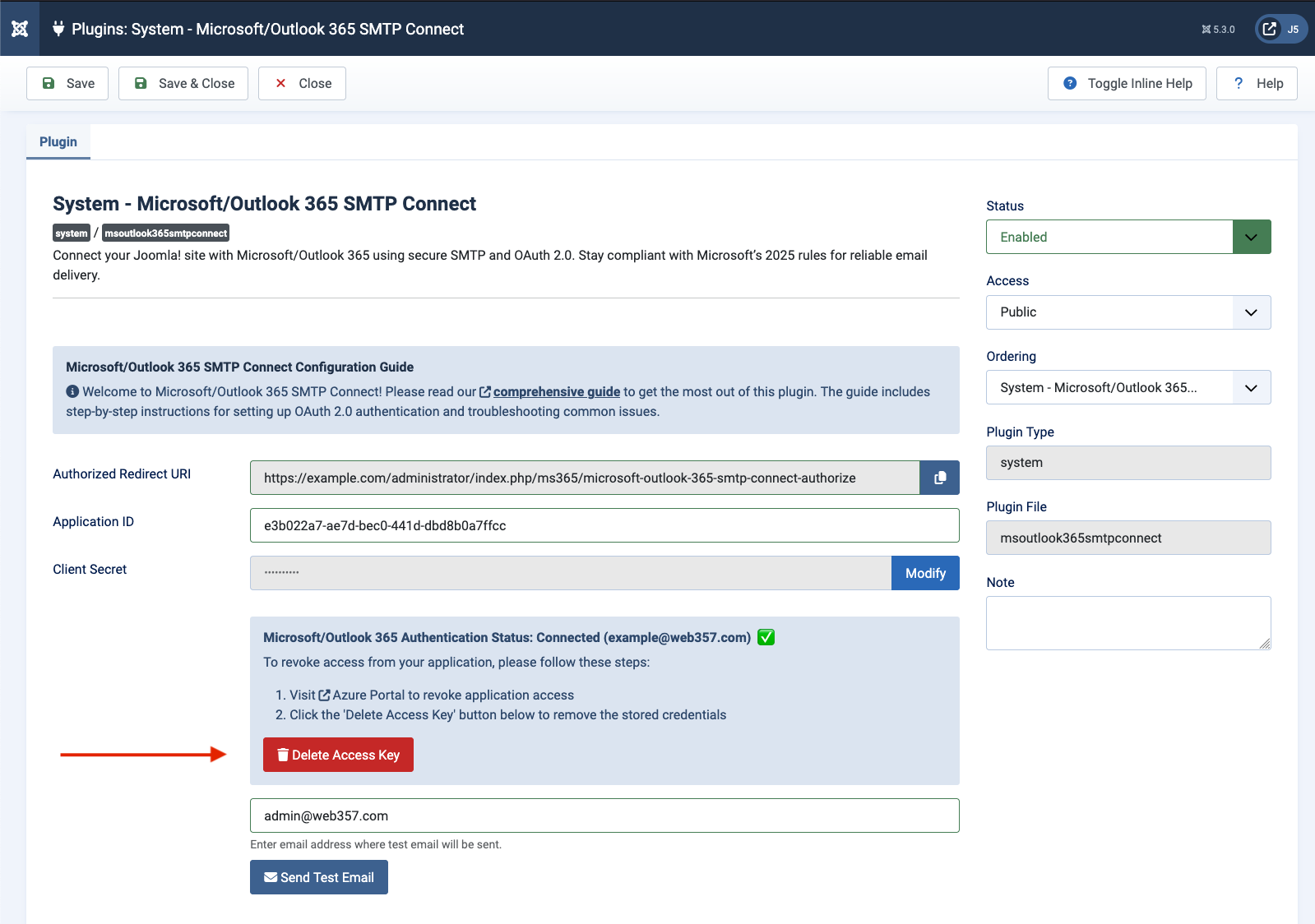
How to configure the Microsoft/Outlook 365 Mail Connect Plugin for Joomla!
Configuration Guide
Follow these steps to set up Microsoft/Outlook 365 Mail for sending emails from Joomla.
Prerequisites 🔐
- A Microsoft/Outlook 365 Email Account
- A paid or free Azure Account
- Required for API access. Sign up for a free Azure account if needed.
- A Valid SSL Certificate
- Your Joomla domain must use HTTPS (e.g., https://yourdomain.com).
- Why? Microsoft APIs require secure connections.
Connect to Microsoft/Outlook 365
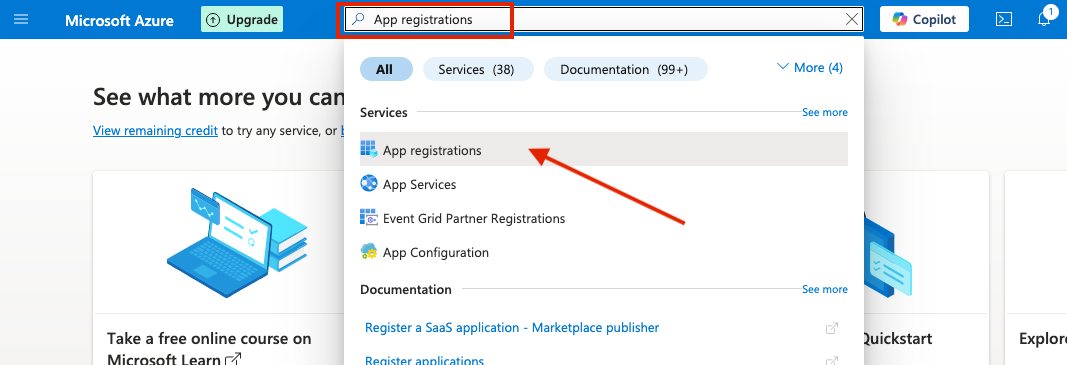
1. Login to Azure Portal and search for App registrations in the search bar at the top of the page.
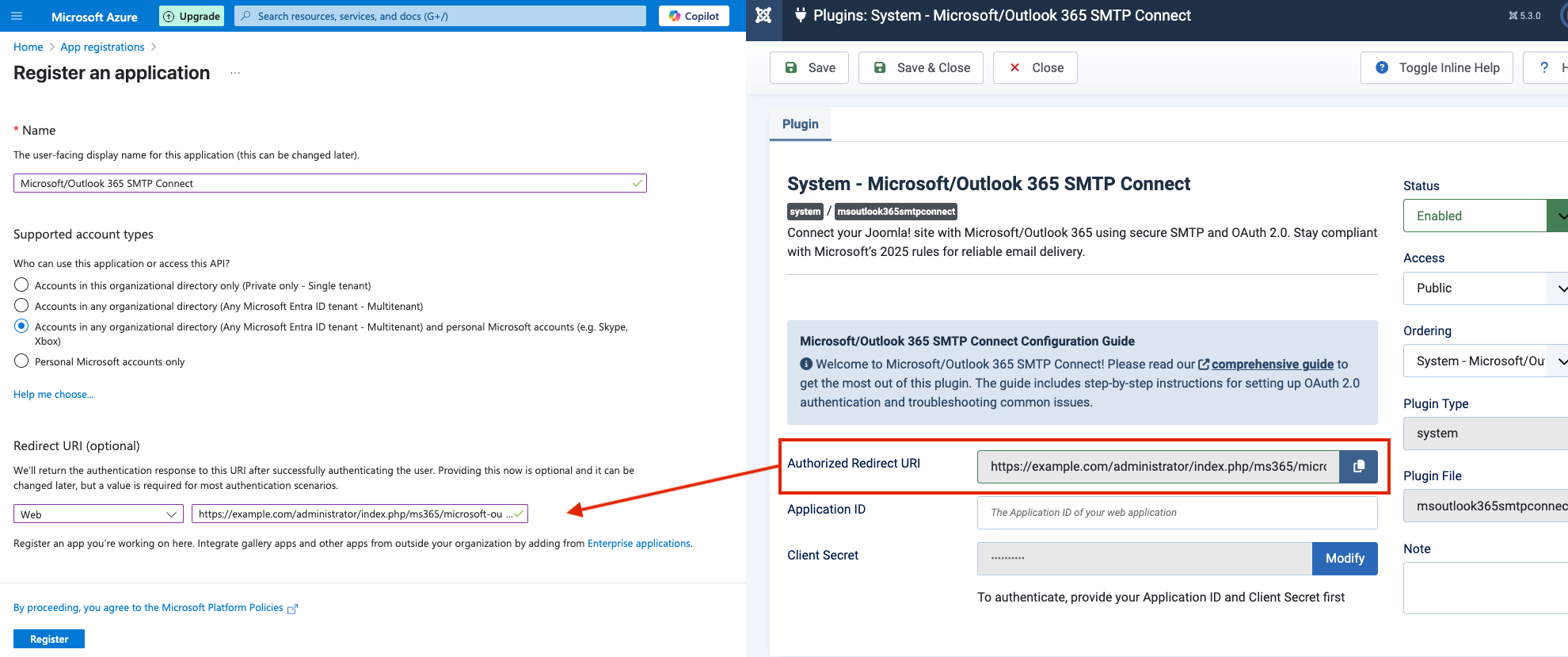
2. Click New registration to begin creating your application:
- Name: e.g.,
Microsoft/Outlook 365 Mail Connect - Supported account types: Select Accounts in any organizational directory (Any Microsoft Entra ID tenant - Multitenant) and personal Microsoft accounts (e.g. Skype, Xbox)
- Redirect URI (optional): Choose Web and paste the URL from the Joomla plugin’s Authorized Redirect URI field
Click Register.
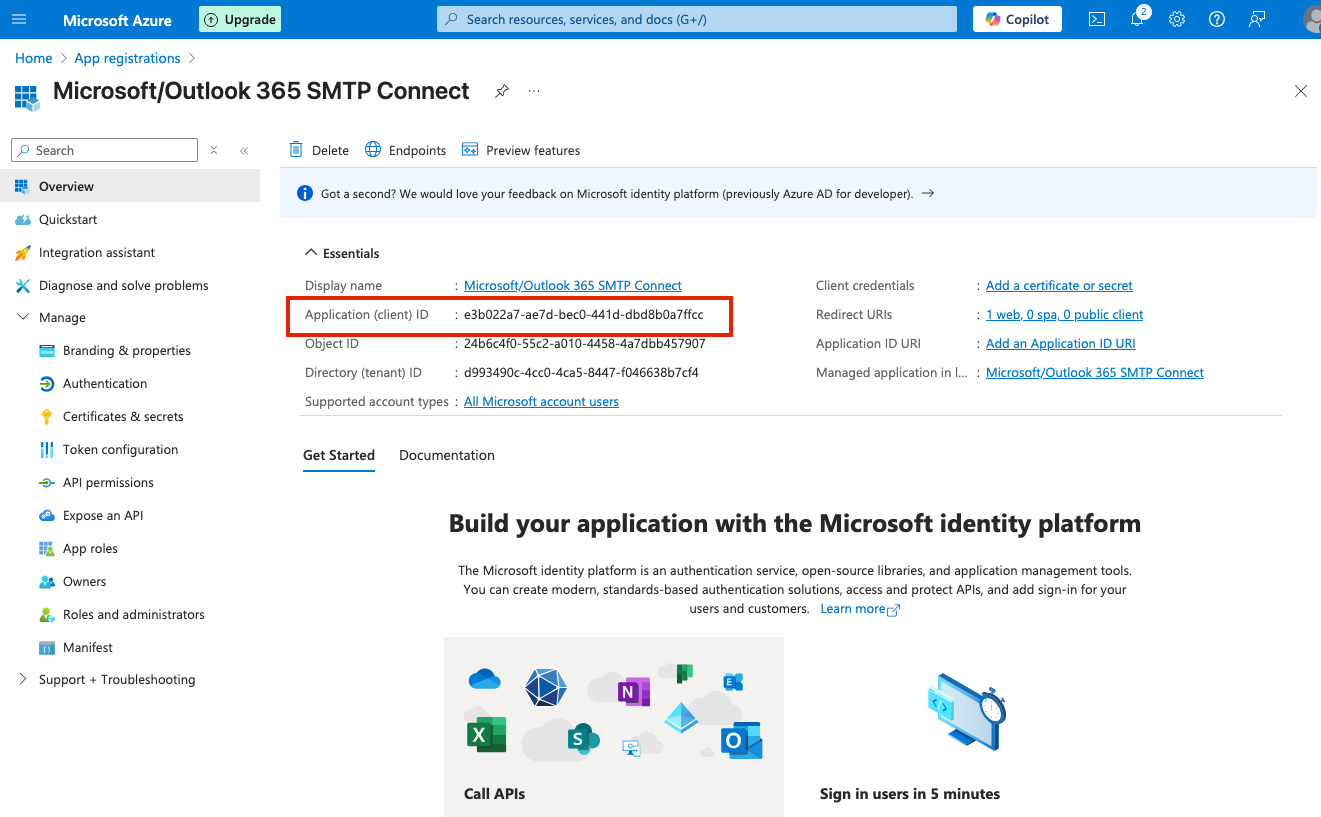
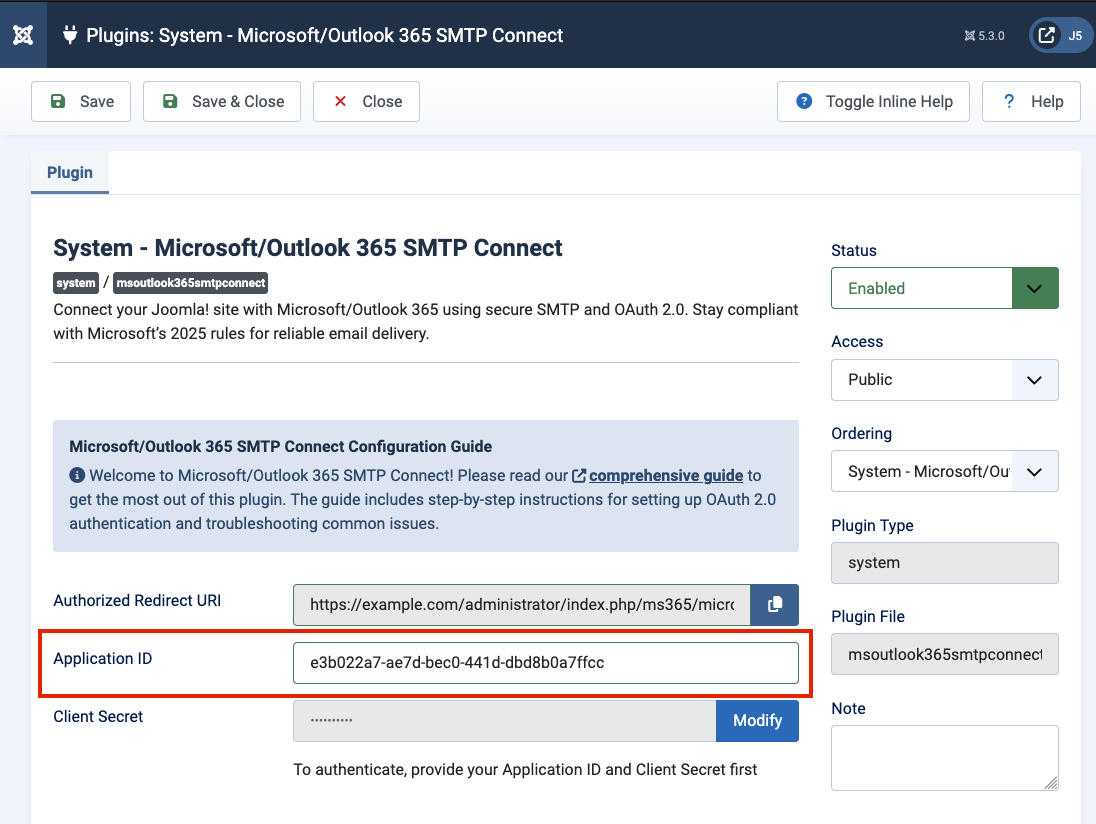
3. Copy the Application (client) ID to the Joomla plugin’s Application ID field.
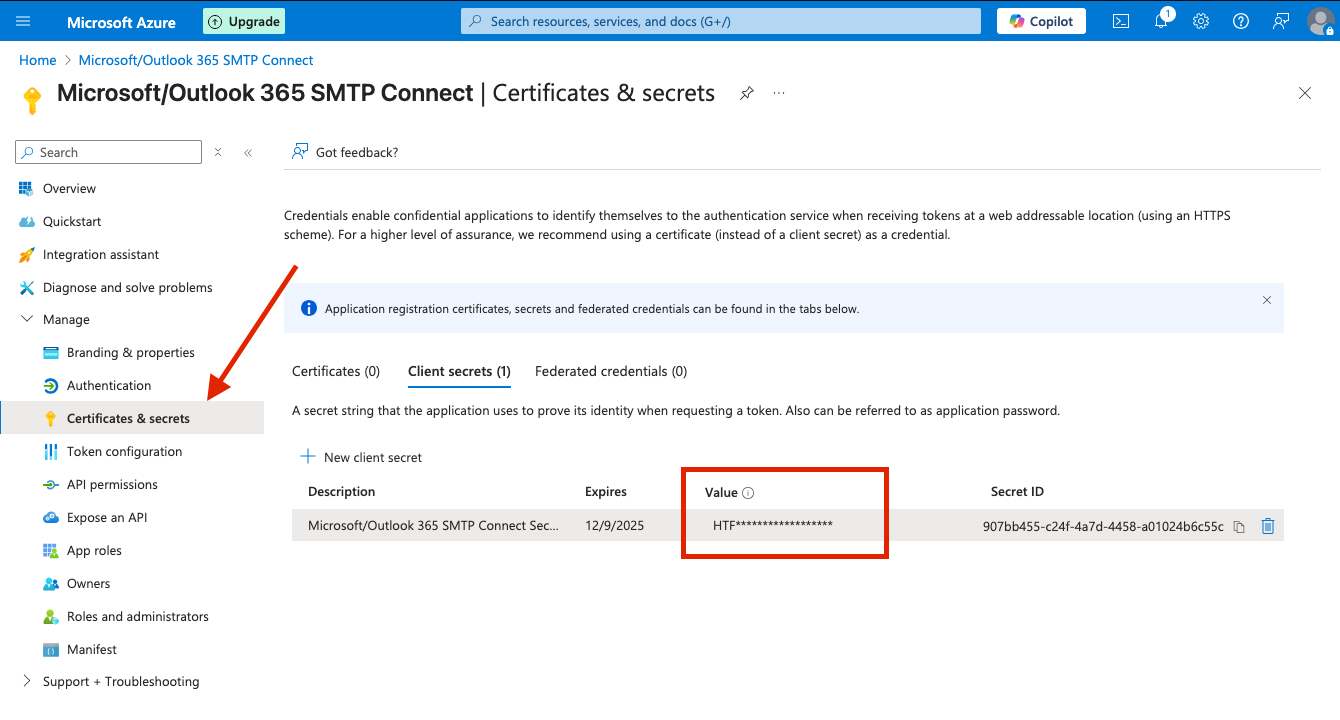
4. Navigate to Certificates & secrets and under Client secrets tab, click New client secret:
- Description: e.g., Microsoft/Outlook 365 Mail Connect Secret
- Expires: Choose between 3 and 24 months depending on how often you want to renew
Click Add and copy the Value to the Joomla plugin’s Client Secret field.
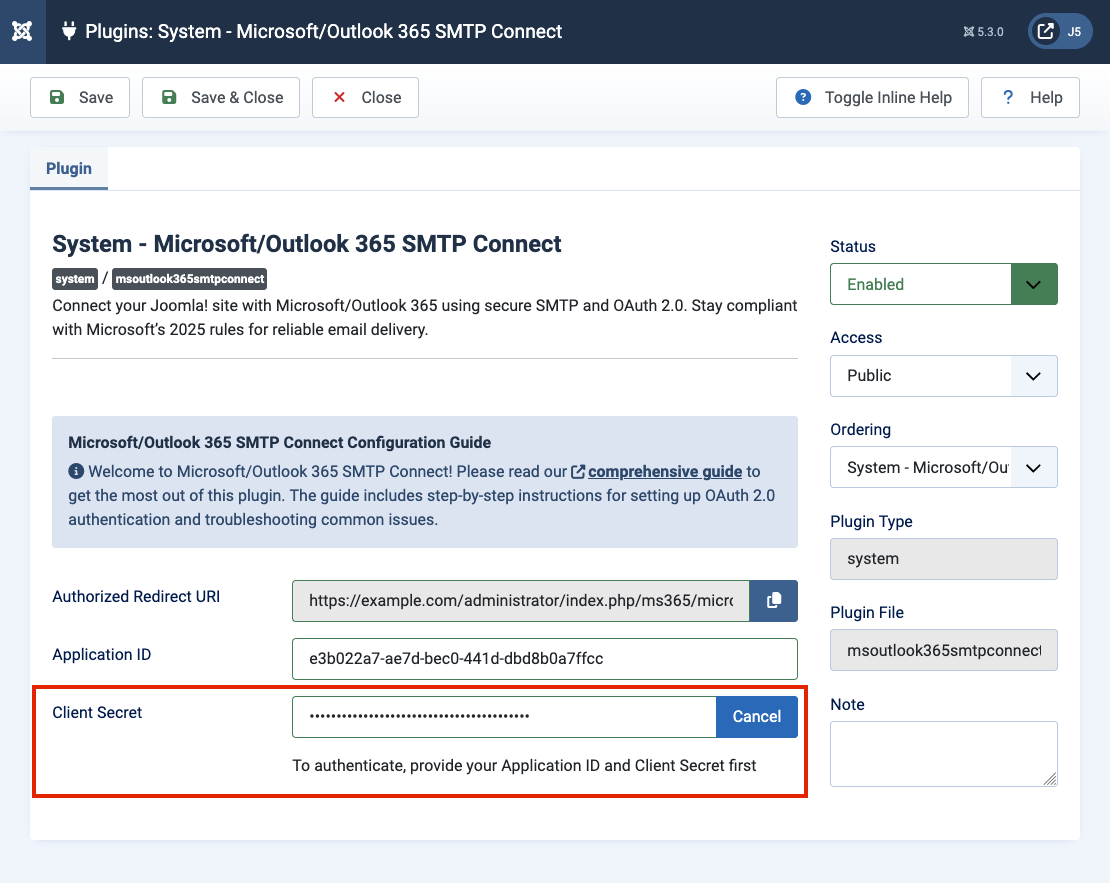
5. Save the plugin settings and click Sign in with Microsoft to log in with your Microsoft account.
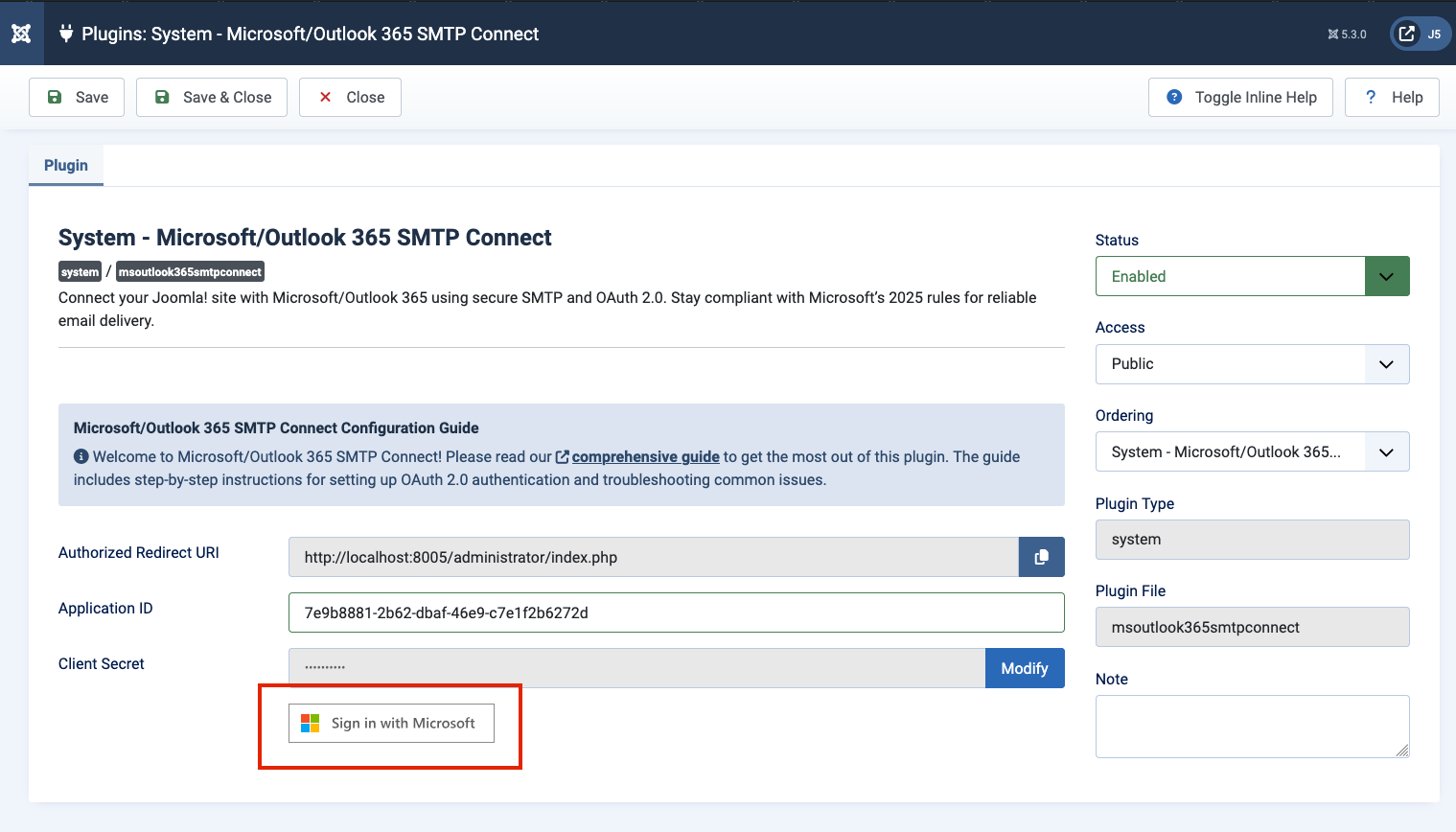
6. Test the connection using the Send Test Email form.
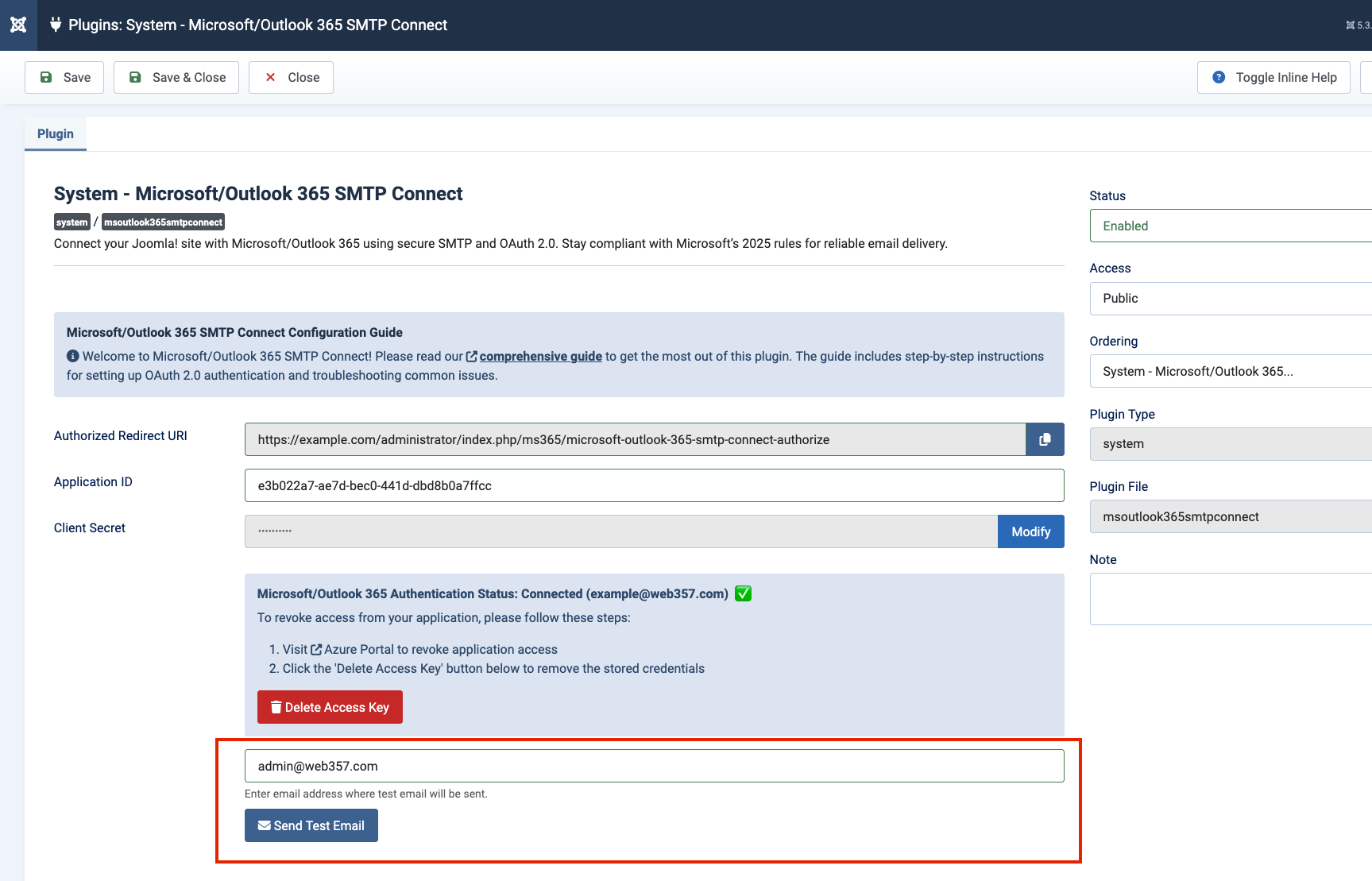
Having trouble signing in to your Microsoft account?
Check out our most common solutions:Disconnect from Microsoft 365
To remove access from our plugin:
1. Login to Azure Portal and search for App registrations.
2. Select your application from the list.
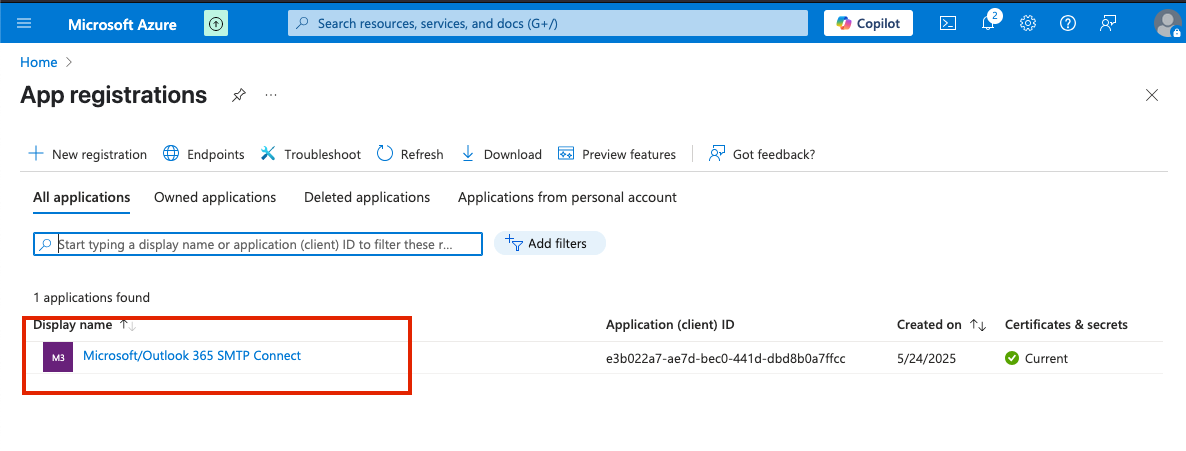
3. Click Delete in the action bar and confirm.
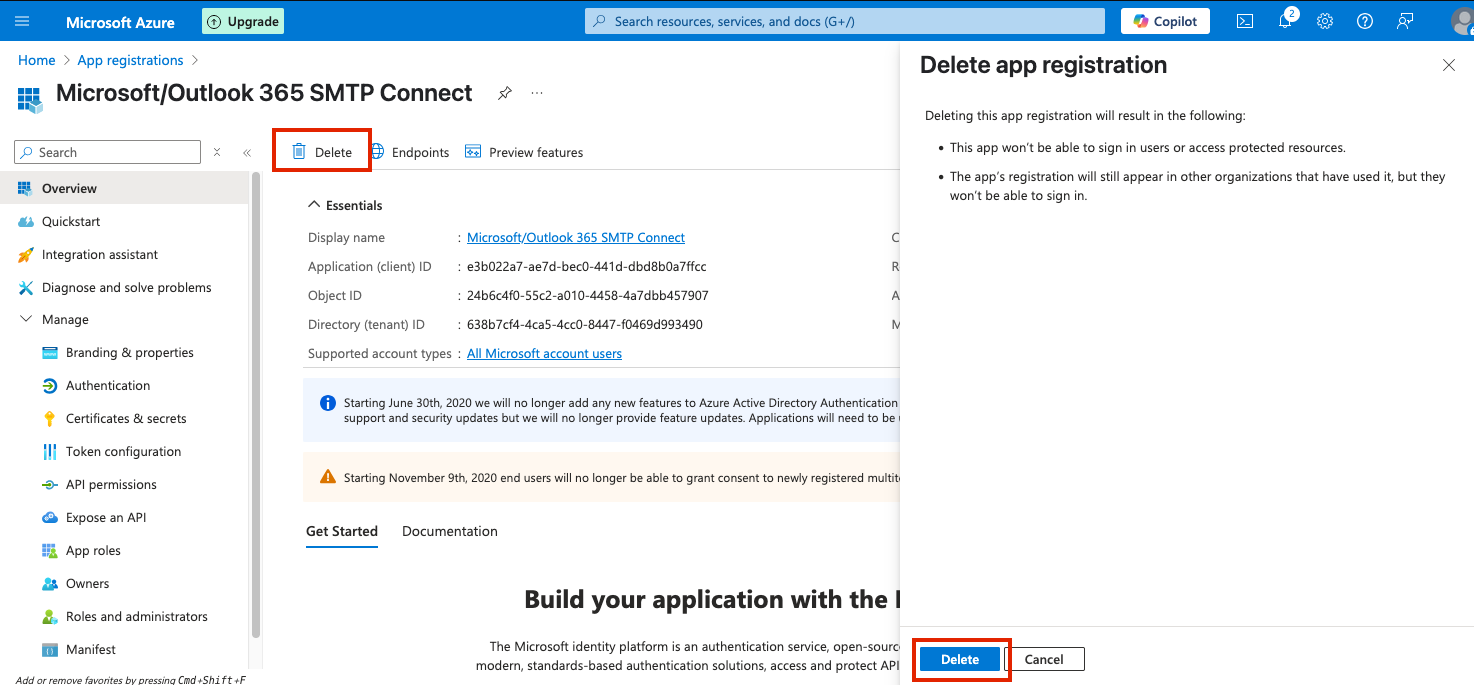
4. Delete the access token from the plugin configuration.